Filament cards
3D printed swatch cards for every filament I own, held on with magnets so they swap between the storage boxes and the AMS.
shop crafts 3d-printing laser cad openscad onshape
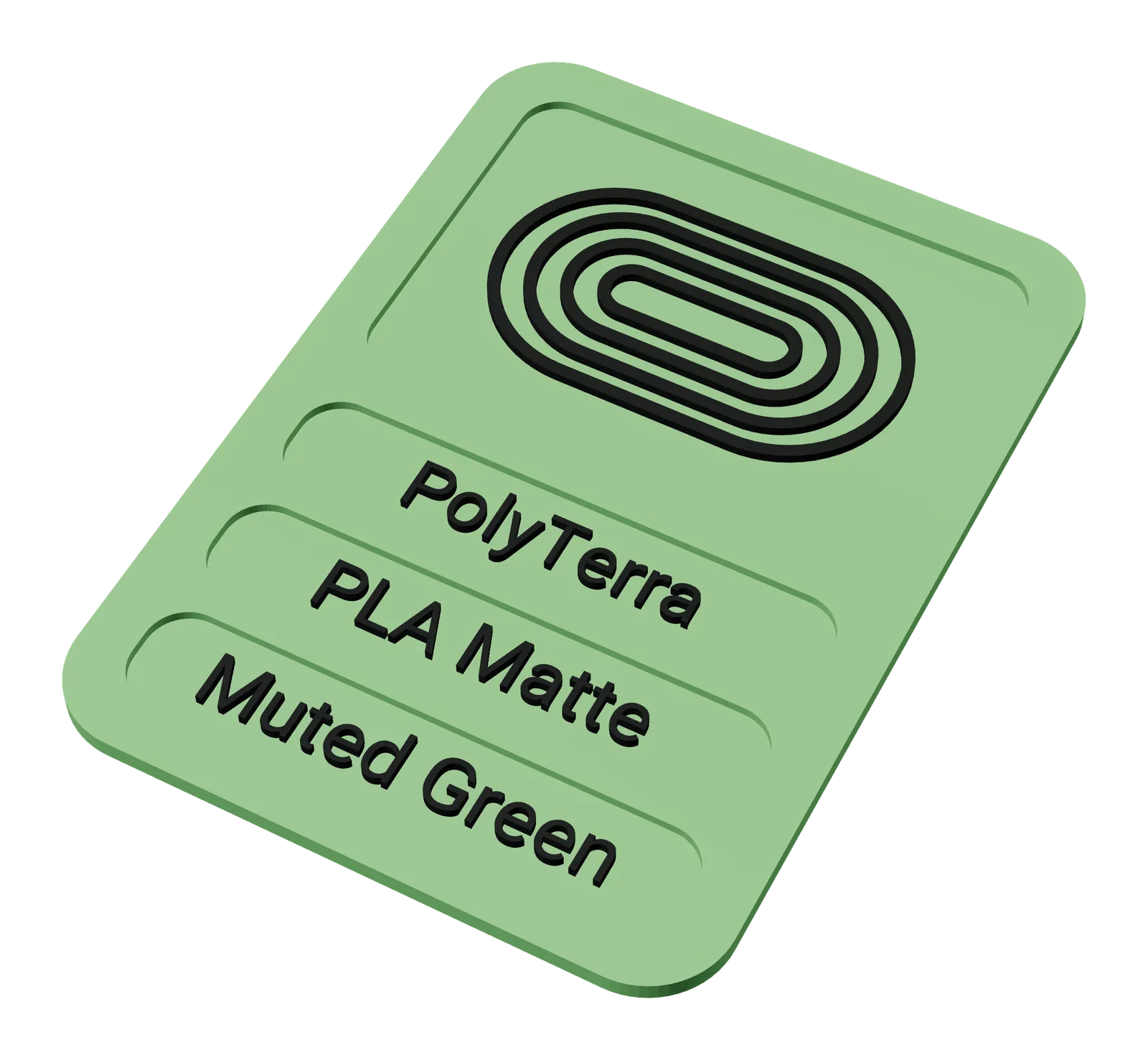
This all started because I wanted color samples to help decide what material and color to use, and to have something to bring around and see what that color and material look like in different lighting. I tried a handful of the filament sample card sets that exist online, but I also knew I wanted to label my storage boxes, so why not do both at once. Every filament I own gets a card printed in that filament, with the brand, material and color on it.
I came up with a few ideas before landing on the trading card style. The layout is loosely based on Pokémon cards (well, most trading cards have a similar layout, I just happen to have grown up with the original Pokémon cards).
Sleeves to magnets
I figured I could keep spare cards in a binder with card sheets for the filaments I’m out of, and for the ones in the storage boxes, attach a single card sleeve to the box to slide the card in and out of as the spool moved around. I quickly found that’s a bit of a hassle and takes two hands to do easily.
So I ended up going with magnets, both on the card and on the storage boxes and AMS units: a 20 × 5 × 1 mm magnet in the back of each card and another on each spot. Now it’s a quick one-handed operation to move the cards around.
The card
- 63 × 88 mm, the size of a trading card, from the sleeve and binder days.
- A 2 mm frame with a 53 × 37 mm image window and three 10 mm text slots for brand, material and color.
- The windows have a 1 mm floor, and the text and image are 1 mm tall, so they finish flush with the frame.
- The image shows the finish: matte, silk, carbon fiber, marble, wood, metal, transparent, dual color and more each get their own little picture.
- A 20.5 × 5.5 mm pocket on the back locates the magnet.
The text and image need a contrasting color to read. For two colors, use your slicer’s paint tool on the top of the letters and the finish image. Only that top layer needs the second color, so this works on a single color printer too: just swap to the second filament when it’s needed.
The alternative is to print the whole card in the one filament and go over the text and image with a paint pen. It still looks nice, and you don’t need black or white in that same material just to print a label.
Print settings:
- 100% infill
- Ironing on the top-most surface only
Laser test
Before laser engraving a card, I test whether that brand and color takes a mark at all, and at what settings. The test goes on the back of a card: a grid of squares, each engraved at a different power and speed, so I can see the range that shows up well. I use a 2 W IR laser.
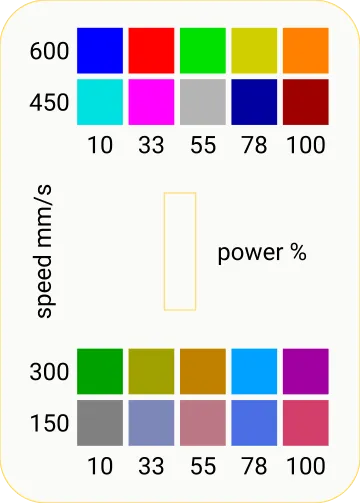
- laser_test.svg: the grid, laid out on the 63 × 88 mm card back. Each square is its own color, so it comes in as its own layer in LightBurn, xTool Creative Space and the like: give each layer the power and speed from its labels. Engrave the black labels with settings you know show up, and skip the yellow guide outlines.
- filament_card_laser_test.xcs: my xTool Creative Space project, with every square’s settings already filled in.
Fusion 360 to Onshape to OpenSCAD
I first designed the card in Fusion 360, with the text driven by variables. When I moved to Onshape I recreated it there the same way: variables for the text, and one sketch per finish with all but the one I wanted suppressed.
Now it’s OpenSCAD: an open, plain text format that’s much easier to customize. The card content is a handful of variables at the top of the file:
brand      = "PolyTerra";
material   = "PLA Matte";
color_name = "Muted Green";
finish     = "matte";
11 finish images from the Onshape design are built in. Most are a few lines of OpenSCAD with their look as arguments, so the dot spacing, ring count or star positions are easy to tweak:
module finish_basic(cols=9, rows=9, pitch=3.25, r=1.5) {
    grid(cols, rows, [pitch, pitch]) circle(r);
}
Set finish = "svg" and point finish_svg at your own SVG to use a different image. Make the SVG
page 53 × 37 mm, the size of the window, and draw on it in mm. The text uses
Roboto, so install it first, or change font.
Files
The example card, or hit customize to make your own right here and download the STL:
- filament_card.scad: the OpenSCAD source
- filament_card.stl: the example card above, ready to print
- laser_test.svg: the laser test grid for the back of a card, for any laser software
- filament_card_laser_test.xcs: the same test as an xTool Creative Space project, with the settings filled in
- Onshape document: the previous version